I just played around with n8n and got the motivation to write this ASAP — I think it’s super cool with a lot of possible applications, and I’m pretty excited!
n8n is a workflow automation tool that helps you connect many apps to each other, often doing so with little to no code. You can probably get a hint of just how much n8n can do from this description alone — imagine a tool that has the conventional inputs, processes, and outputs of a typical workflow, but supercharged with the power of APIs and AI (LLMs can greatly change the flow)!
I first came across this through a video from NetworkChuck giving a rough tutorial on n8n and how it works. I liked the drag-and-drop nature and how you piece things together in this node/graph-based view, and it made a lot of sense and clicked in my head seeing him connect node to node. Not long after, a video from Christian Lempa came in too, giving an intro and tutorial on n8n1. That sparked my interest in it even further; almost like an affirmation that this is something worth checking out.
Setting up was a breeze
If those videos weren’t convincing enough to me, the setup process just sealed the deal. The DX the team behind n8n offered was amazing; they already have a sample Docker Compose file readily available for us to pick up and use! The only thing was that I didn’t need Traefik — Cloudflare Tunnels is already my go-to to route everything public-facing to my internal services — so I opted to set up n8n without it. I picked up this Docker Compose file from a community post that discussed explicitly using Cloudflare Tunnels.
If you’re curious to see the final file I used to deploy n8n, check out the Compose file in my home lab repo. There’s nothing much different from the community post Compose file besides a change in port number and extracting environment variables to their own .env file.
I’ve been using Portainer (greatly recommend if you’re not fond of typing into the terminal, btw!) to manage my entire Docker stack, so it’s quite easy to set up n8n using its web GUI. All I had to do was create a new stack, paste in my Docker Compose file in the web editor, and deploy. Just like magic, it’s there.
The possibilities are endless; where to start?
Arguably one of the most difficult parts about starting something so exciting is the many routes you can take. I, for one, am quite prone to having some form of choice paralysis; there are just so many avenues to explore, and I’m not sure where to begin at all. From all the videos I’ve watched, small daily productivity workflows that people have shared on Reddit, and all the ideas brewing in my head, there were just so many places to start from.
That’s when I thought of having a few nice small checkpoints to try out:
- Webhooks or any form of listener — can I remotely trigger a workflow by calling out to it? Webhooks are perfect for this, so does n8n have some form of webhook functionality?
- Definite yes to LLMs — so many n8n workflows that I’ve seen online play around with LLMs from different providers (it’s super easy to switch between providers here, with the only caveat being that you have to bring your own keys); wouldn’t it be nice if we could play with them?
- Test the waters and explore — honestly, I didn’t have any concrete goals with n8n just yet. I was just immensely curious based on everything I’ve seen so far, so why not just have some fun along the way?
That’s when inspiration struck me: hey, what if I simplified some of the Shortcuts running on my iPhone?
Shortcuts: the OG workflow app
Shortcuts was one of the OG workflow apps for me because that was where I truly dabbled around with anything low-/no-code and workflow-related. It already hands so much power to you by allowing you to connect to so many different services and apps. Need to call and fetch the contents of a URL (say, your own API) then send a message on Telegram? Just bring the right pieces together and you’re there. Need to turn on Low Power Mode when you leave home? That’s done, too.
It’s therefore not surprising that I’ve played around with Shortcuts on my iPhone, and one prominent series of workflows within it is generating inspirational or motivational messages whenever it’s time to book in/out and every morning for my BMT2. I just thought that having a nice little personalised motivational message to start off the week/day can do wonders. It’s the little things that get you through, right?
I had three Shortcuts that ran at different intervals: one runs when I book into camp (triggered by detecting me entering a geofence); another every morning at 5 a.m. (a little morning encouragement!); and one more when I book out (like booking in, it’s triggered when I leave the geofence).
Here’s a rough shakedown of what a workflow might do:
- If booking into camp, enable Low Power Mode and set the media volume to 0%.
- Put together the system prompt to instruct the LLM what to generate and give additional context — “generate a motivational message”, that I’m booking in/out, the current date, etc.
- Call another Shortcut responsible for calling the LLM API and parsing the response, generating the motivational message to be shown.
- Use this generated message to generate an appropriate title — call that same other Shortcut (LLM API interactor) to produce a one-line title.
- Combine both the generated long-form message and one-line title in a notification, and display it.
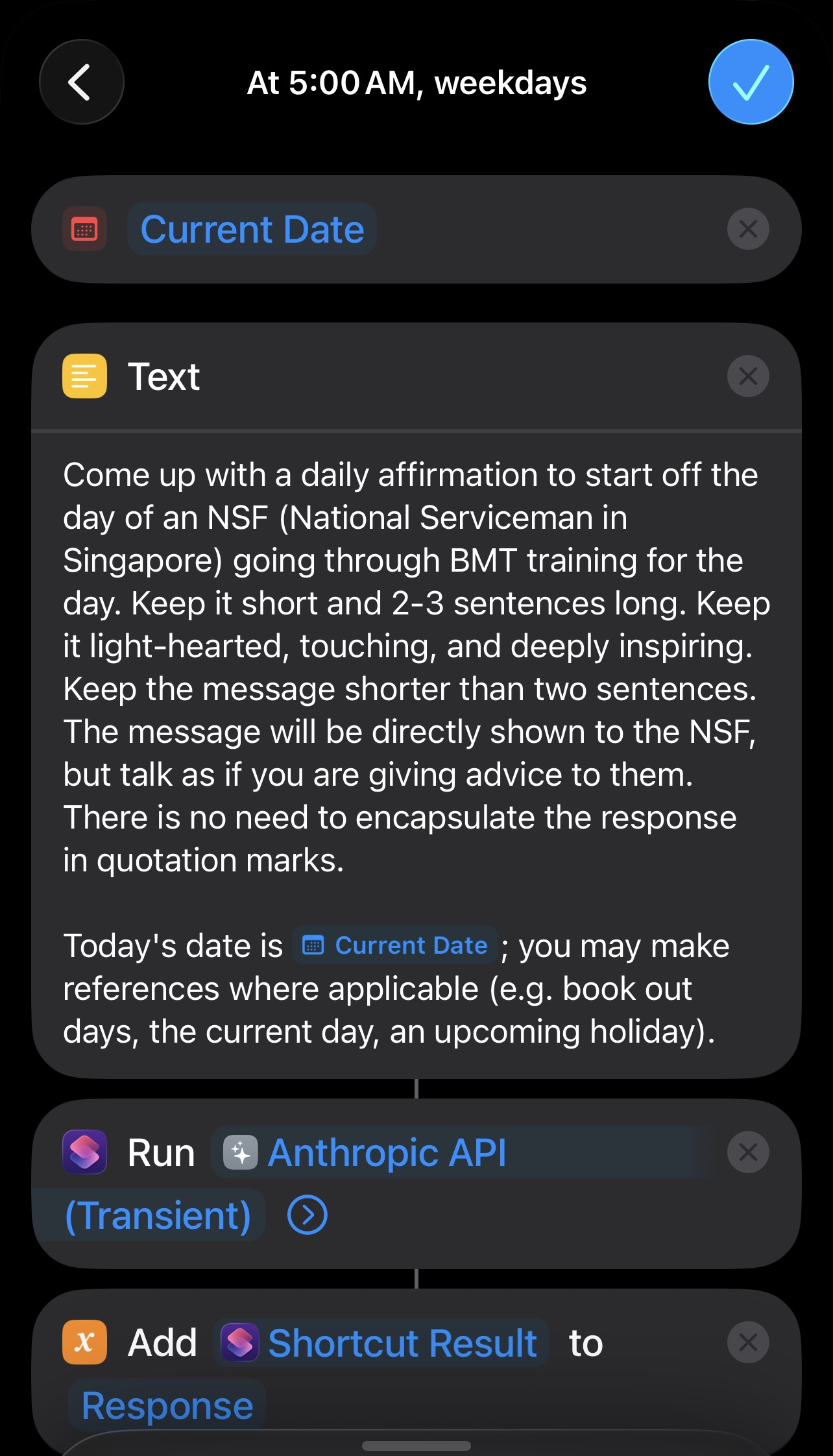

I never really had any problem with these workflows because they do work, but I found having to edit or make changes to them pretty clunky. The main reason why I’m using a Shortcut to make these calls to the APIs instead of using the respective apps is because (a) I don’t really want there to be a chat history just generating motivational messages, and (b) I want this to run in the background, then only show me the notification.
So what better way to play around with n8n than to try to replace what I have now with it?
Testing the waters
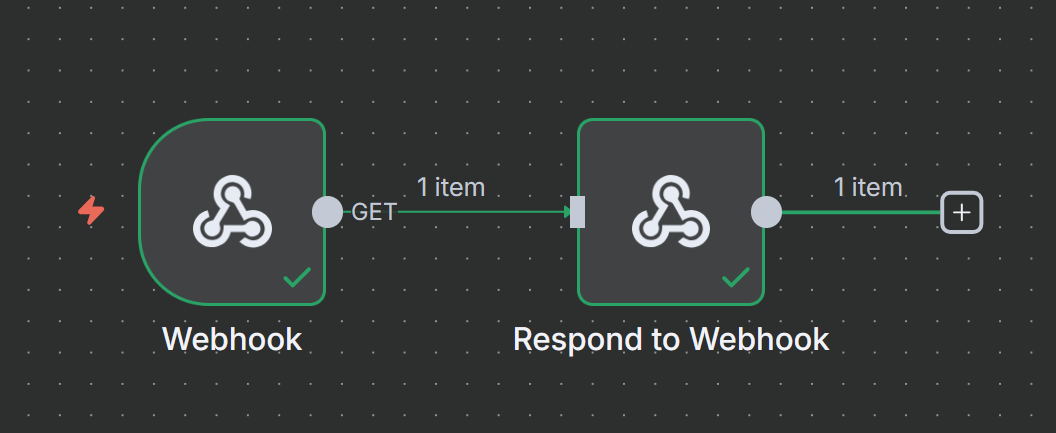
To start with n8n, I went ahead and created a new workflow. I plopped in the Webhook trigger node and the Respond to Webhook node for starters — creating a simple input-output workflow just to make sure things are working.
- Within the Webhook trigger node, you can specify the path of the webhook — where
xxxis the path, the webhook’s publicly-accessible URL would then behttps://example.com/webhook/xxx. That’s pretty neat! - You can also configure how the Webhook trigger node responds; selecting “Use ‘Respond to Webhook’ node” means you’ll need to eventually end the flow with that node. That node then allows you to specify how and what to return — in my example, it was just a JSON for starters.
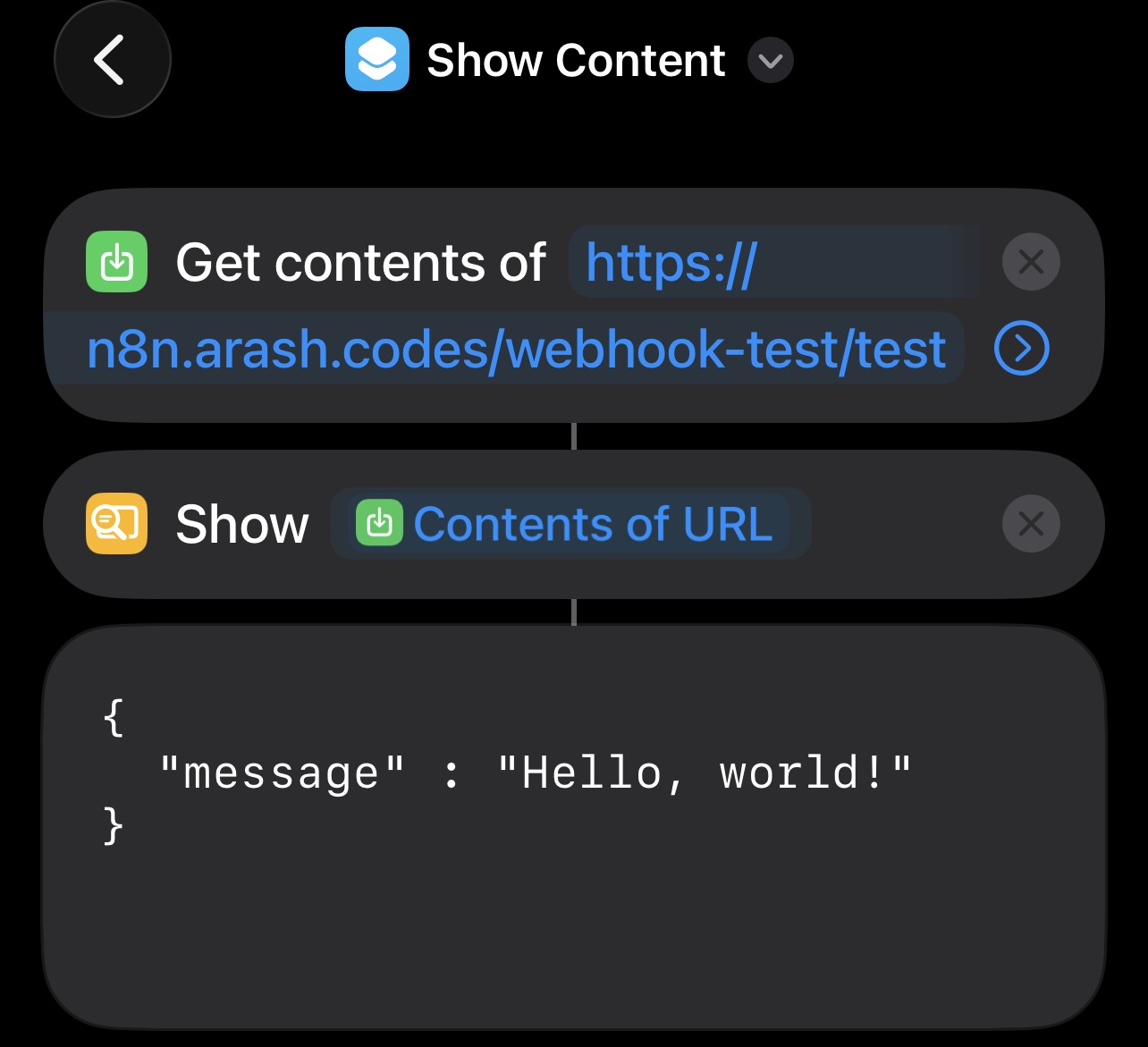
Back within Shortcuts, I just needed to use the “Get Contents of URL” task, point it to the webhook URL, then pair the output with a “Get Dictionary from Input” task. I can then parse the JSON and use it appropriately to display the notification on my phone.
And what do you know, it works perfectly!
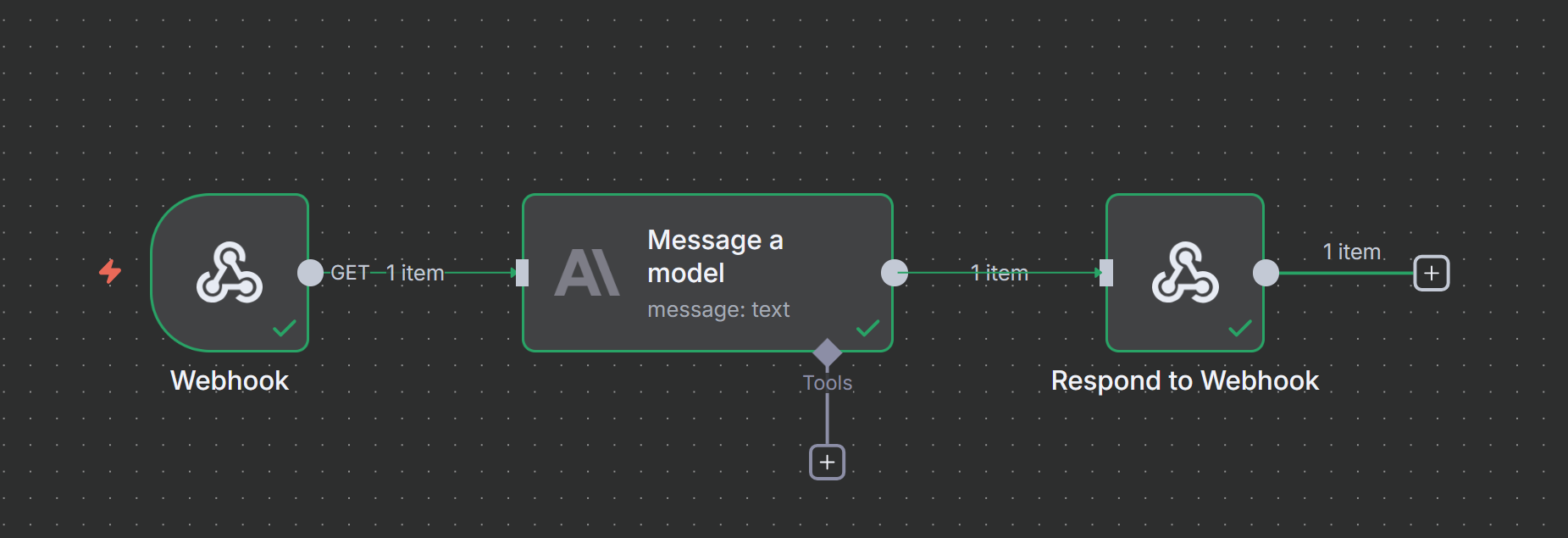
The next step is to throw an LLM into the mix. Rather thankfully, n8n natively supports LLM workflows. You can choose a specific provider — just as I have done for this small experiment — or a generic node that you can then hot-swap different models from different providers later on (I’ll explain this further).
I threw in a node to message an Anthropic model (I chose Claude Haiku) with a basic prompt to come up with a “one-line joke about a developer playing around with n8n”. Since it’s all drag and drop, dragging the output of this to the “Respond to Webhook” node will pass along whatever generated message Claude comes up with to that node, making it possible for me to then throw that message into the response JSON that will be delivered by the webhook.
And here it is in action:

Replacing Shortcuts
Now that LLMs are confirmed to work, the next part would be to entirely replace the Shortcuts flow with something I can edit and understand easily on n8n.
The major problem I had with my current Shortcuts implementation was that we were calling the APIs to these LLMs — that meant having to manually put together a JSON body to send and expose the API keys within Shortcuts itself, make the API call, and then handle the API response (including sifting through the response data to get the actual LLM-generated text alone). This was somewhat tedious to do on a phone itself, so it’d be great if this entire process could be pushed off somewhere else more convenient, meaning that the Shortcuts flow would only need to focus on calling a webhook and dealing with the response (which we can prepare nicely with n8n).
Remember that in these Shortcuts, two LLM calls are being made: one to generate the full body response that contains the motivational message, and the other to generate a one-line title for the notification. On the Shortcuts app, it’s a bit harder to differentiate where the API calls happen. Within n8n, the nodes make it easy to tell things apart. And since we’re playing with webhooks, we can play around with different execution flows for each scenario, too.
I had a small misunderstanding with n8n, in that I initially thought that you had to have entirely different flows if you wanted to use different LLM providers. I thought this way because each LLM provider has their own response schema, so did that mean we had to handle each LLM provider separately?
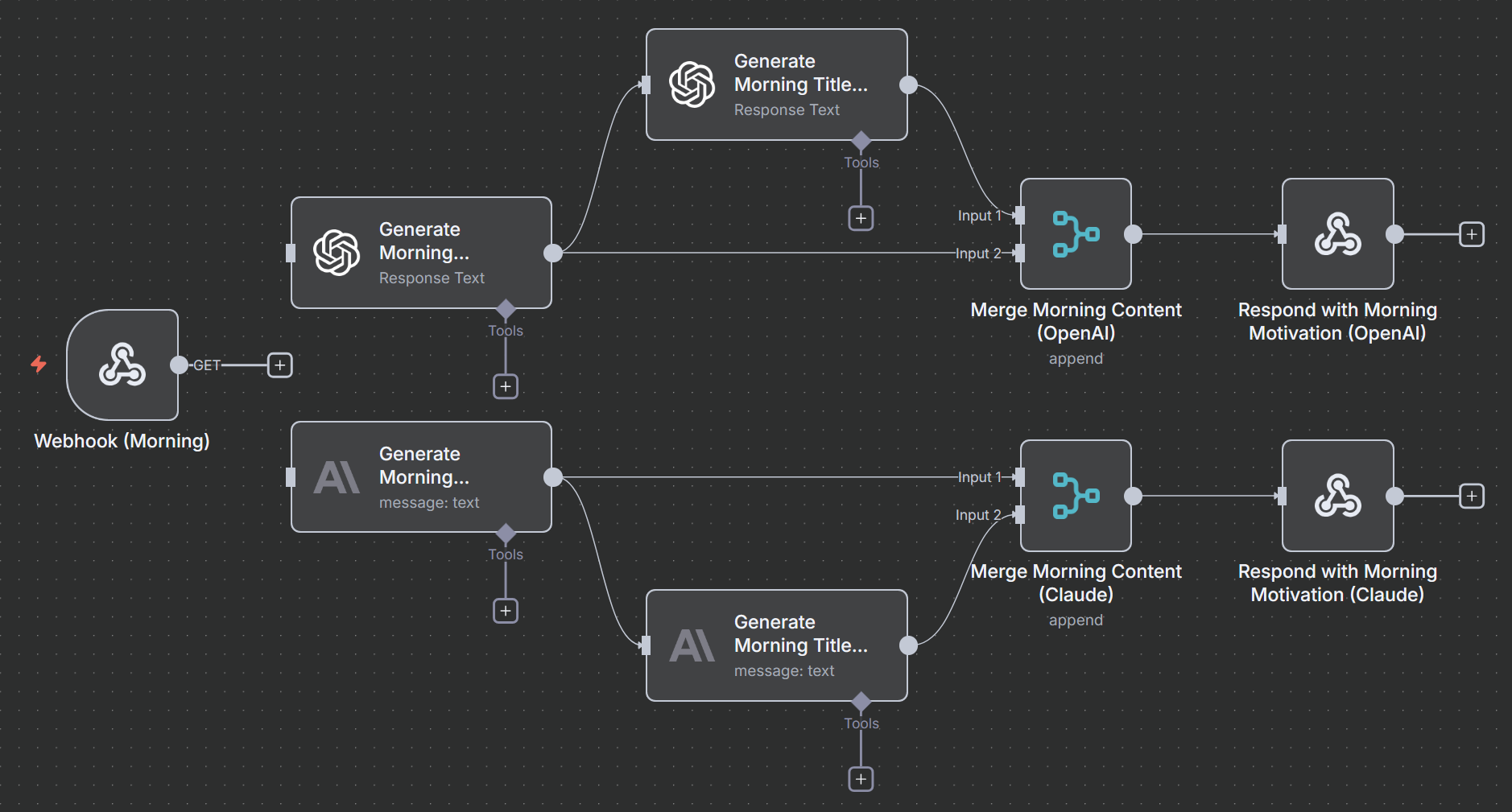
Not really. n8n provides this “Basic LLM Chain” that adequately abstracts everything for us. We just need to supply it the right model to use and any tools (in this case, no tools were needed since this is a pretty simple scenario). I think this is a pretty neat solution to an otherwise unnecessarily convoluted problem!
So, in the end, here’s a look at what the workflow looks like for just one scenario — generating a motivational message to be shown in the morning:
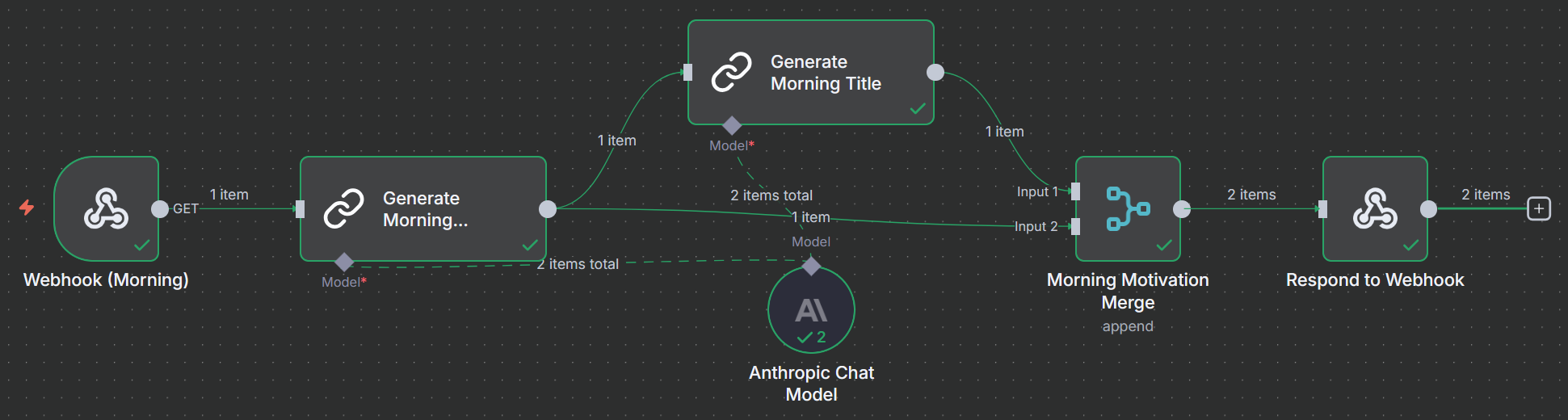
I figured out the Merge node just by looking at a lot of documentation and working backwards at how other people have done it. It’s a helpful way to combine (…merge) two or more inputs into one, and that’s perfect for us, who need both generated texts to return to Shortcuts.
Back at Shortcuts, I can then cut away most of the process and just condense it back to this:

That’s a lot easier on the eyes if you ask me.
Just the beginning
This is just one of the infinitely many ways you can play around with n8n to do something for you. I’ve always stayed clear of no-code platforms because there would always be some kind of limitation that you’d hit; but with n8n and how it’s incorporated generative AI into the mix, it unlocks just a little bit more flexibility that can go a long distance when you think about it — anywhere from using an LLM to ensure structured output or even self-repairing responses with them!
I think that this is one of the areas where LLMs and generative AI can truly help instead of being a detriment. When you integrate it into the tooling and the processes you already have, it can only enhance the system as a whole (provided that you give enough guardrails and don’t treat it any differently than you would a junior staff member…).
If you’re curious about any low-code platforms that might have some AI integration — even generative AI — have a look at n8n! I’m excited to keep playing with this and seeing what else I can continue making just with drag-and-drop.